
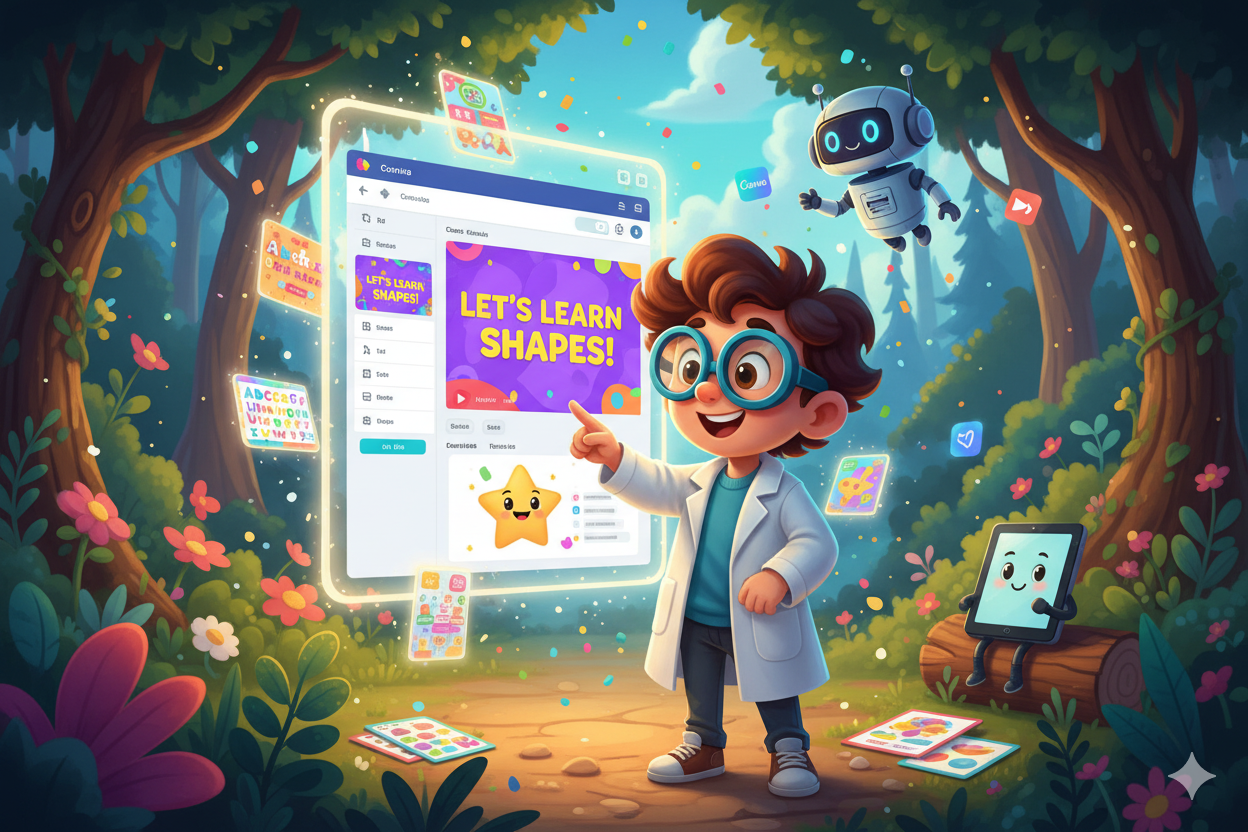
Canva template educational videos are the ultimate shortcut to creating polished, highly engaging educational videos without complex software or graphic design expertise. The secret lies in simplicity and the right tools. That’s precisely why our digital resources come bundled with ready-to-use Canva templates—to deliver an easy, affordable, and fully beginner-friendly path to professional content creation.
In this guide, we’ll demystify the process, walking you through how to use our Canva template to create educational videos step by simple step. You’ll be ready to produce your first video even if you’ve never hit the ‘record’ button before.
Why Canva Dominates for Canva Template Educational Videos
Canva has become the indispensable tool for educators and creators, and for good reason. This free, web-based platform is intuitive and eliminates the need for any technical video skills.
With Canva, you effortlessly gain:
- Drag-and-Drop Mastery: Access professional layouts and an intuitive editing environment.
- Creative Control: Add your own customized text, images, and fun animations.
- Universal Export: Output your videos in high-quality formats ready for YouTube, social media, or direct integration into your digital lesson plans.
By starting with our pre-designed templates, you bypass the most time-consuming part of the process. The fonts, color palettes, and structured layouts are already optimized for child learning—you simply inject your brilliant content.
Step 1: Claim and Load Your Template
Your journey begins the moment you complete your purchase.
- After acquiring one of our educational video packs, locate the Google Doc that contains your access link.
- Click the provided link to open the resource directly in Canva.
- Choose the “Use Template” option.
The template is instantly copied and stored securely in your own Canva account, primed for customization. If you haven’t yet joined, a free sign-up at canva.com is all you need—the free account is powerful enough for most users, though Canva Pro offers premium elements for the ambitious creator.
Step 2 (Optional): Inject Your Lesson Content
Our templates feature clean, organized slides with ready-made placeholders. Customization is fast and fun:
- Text Refinement: Double-click any existing text box to input your unique lesson titles, key concepts, or straightforward instructions. Remember: for young learners, large fonts and clear phrasing are key.
- Image Replacement: Upload your personal pictures, browse Canva’s massive image library, or seamlessly integrate illustrations from your matching printable packs to ensure visual consistency.
- Character and Icon Addition: Use Canva’s Elements tab to insert arrows, geometric shapes, or lively characters, instantly enhancing the video’s appeal.
Step 3 (Optional): Polish with Movement and Sound
The most memorable educational videos balance strong visuals with dynamic elements. Here’s how Canva makes this easy:
- Subtle Animations: Select any graphic element and choose “Animate.” Use fade-ins, slides, or subtle pop effects to keep the video dynamic without becoming distracting.
- Audio Layering: Upload your recorded voice-over, or select an appropriate background track from Canva’s audio library. Upbeat, gentle music is usually best for reinforcing children’s content.
- Guided Transitions: Apply smooth transitions between slides to ensure children follow the lesson flow naturally from one concept to the next.
Step 4: The Final Export
You can move from opening the template to exporting the final product in minutes—it’s that fast.
- Click the Share button located in the top-right corner of the Canva interface.
- Select Download and choose the MP4 Video format.
- Ensure “All pages” is selected to include the entire lesson.
Your completed video is instantly ready for use: upload it to your learning management system, play it directly in your classroom, or share it securely with your parent community.
Pro Tips for Maximizing Your Content
- Template Duplication: Never edit the original! Always duplicate your template to preserve your core design, allowing you to quickly launch new lessons by simply swapping the content.
- Resource Pairing: Achieve mastery by combining the video lesson with tangible learning. Instruct children to watch the video, then practice their skills using our matching worksheets, coloring pages, or posters.
- Active Engagement: Encourage interaction by including prompts in your video, such as “Pause now and try this!” or “Shout out the answer!”
The New Era of Educational Content
You no longer need to fear the complexities of video production. With our Canva template educational videos, you gain an unparalleled shortcut to professional-quality content creation. In just a few easy steps—from accessing the link to customizing and exporting—you can launch engaging, effective lessons that save time and empower every type of learner.






0 Comments